How to host Umbraco website on IIS
Step 1: Install IIS
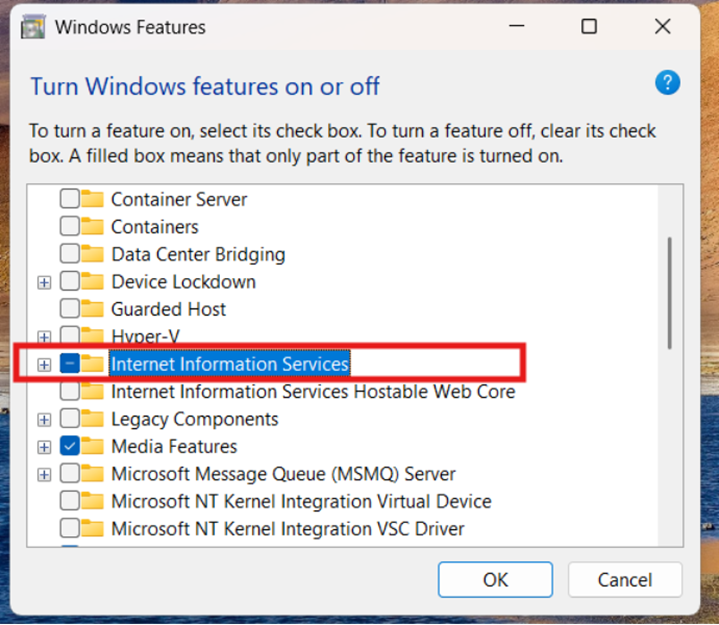
Press windows icon button and type “Turn Windows features on or off” and press enter then show below image and highlight row checkbox select then click OK, let it install, and restart your PC if needed.
Step 2: Publish your Umbraco project
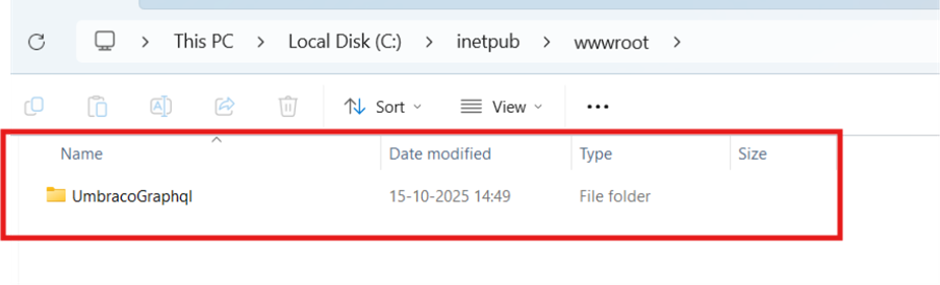
First create one folder your project name in this file path - C:\inetpub\wwwroot\
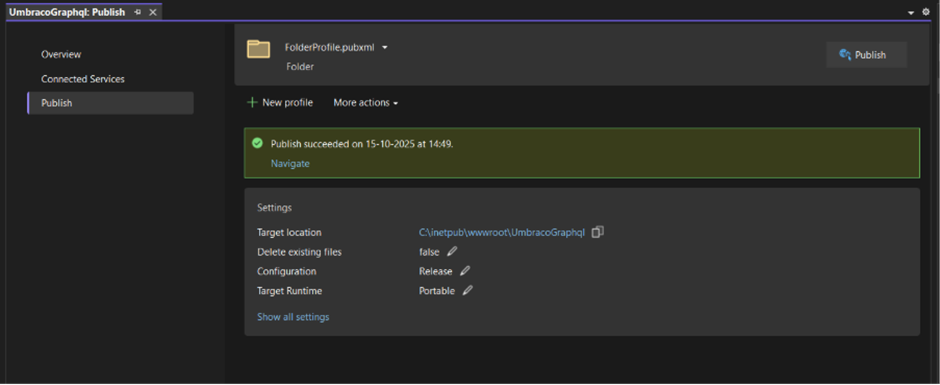
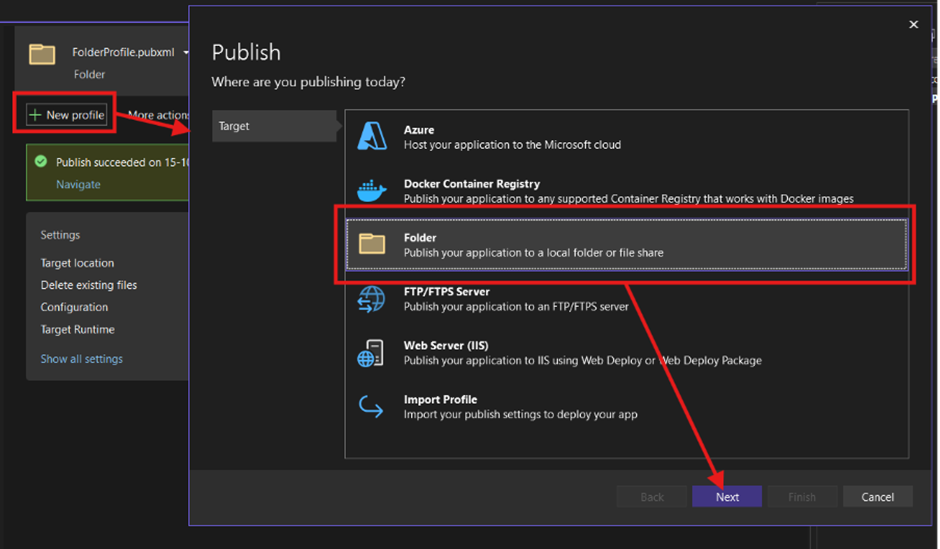
Open visual studio with your project and Right-click your project → Publish then show below show screen below image wise
Now click on New profile then open new popup and select “Folder” option press Next button.
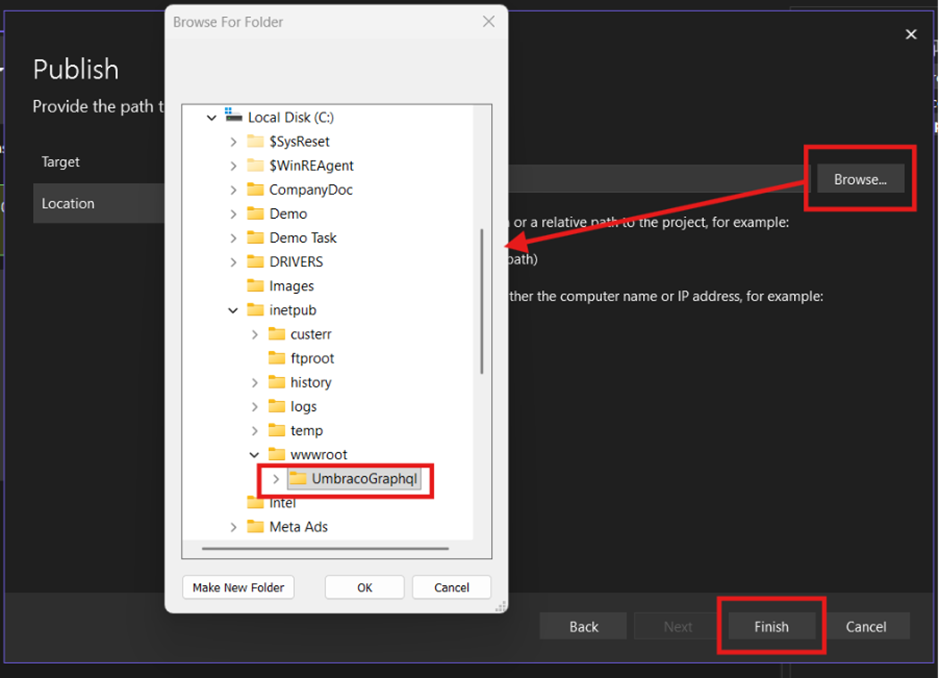
After press Next button then show new popup as below image wise and click Browse button then select this path : C:\inetpub\wwwroot\YourProjectName and after select path then press “Ok” and after press “Finish” then your publish profile create successfully.
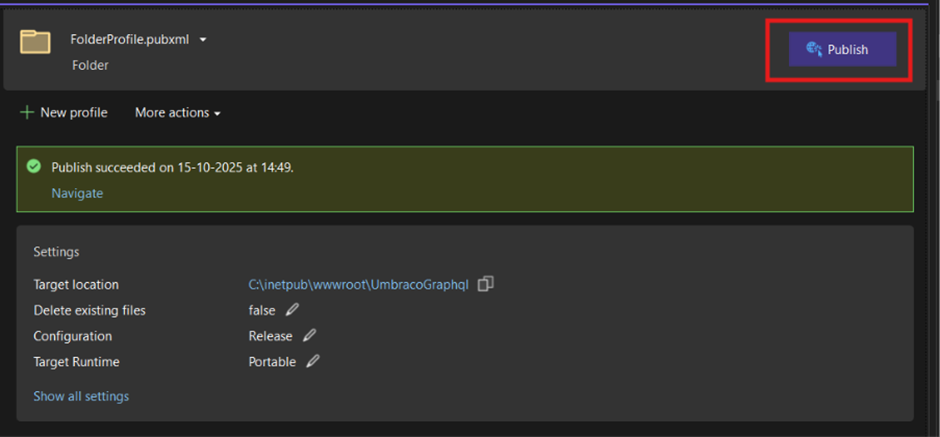
After finish publish profile process then show screen as below image wise press highlighted “Publish” button then all code is published successfully.
Step 3: Configure IIS Site
- Open IIS Manager
- Right-click Sites → Add Website
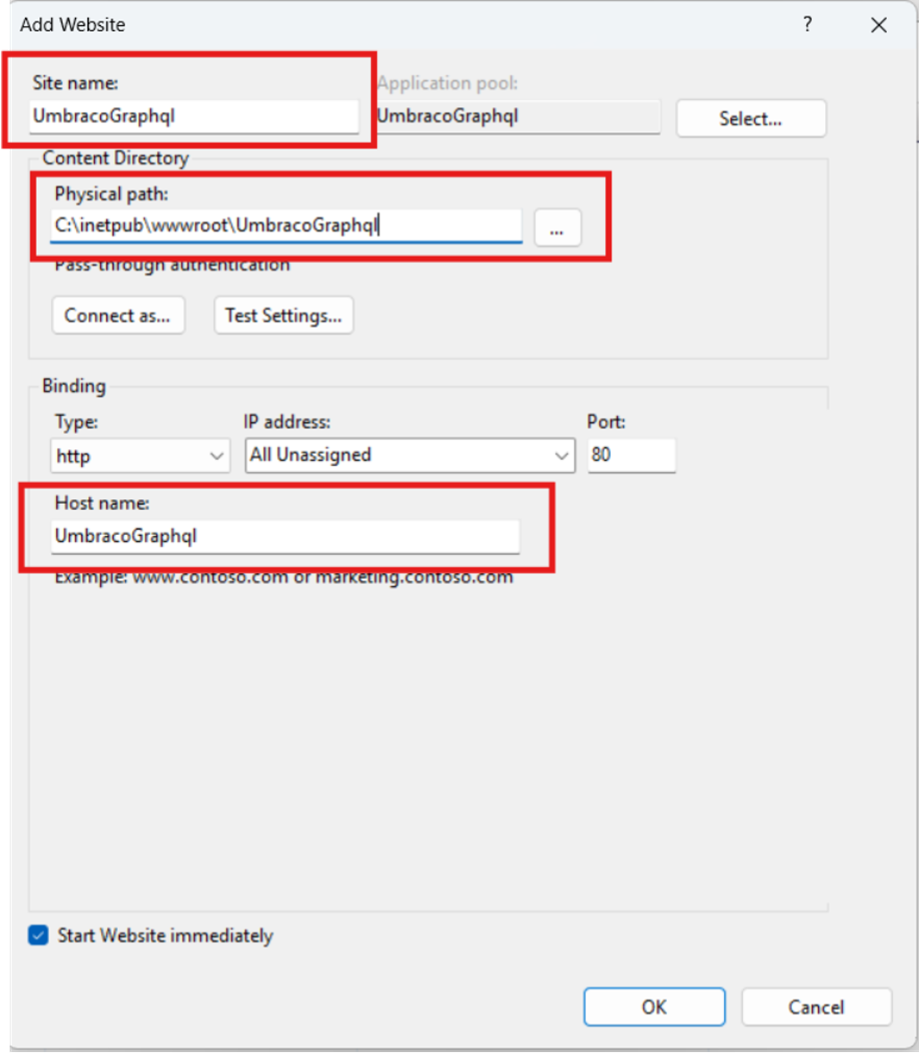
- After click Add Website then show popup as per below image wise please update your project detail as per highlighted box after update all details then press “OK”.
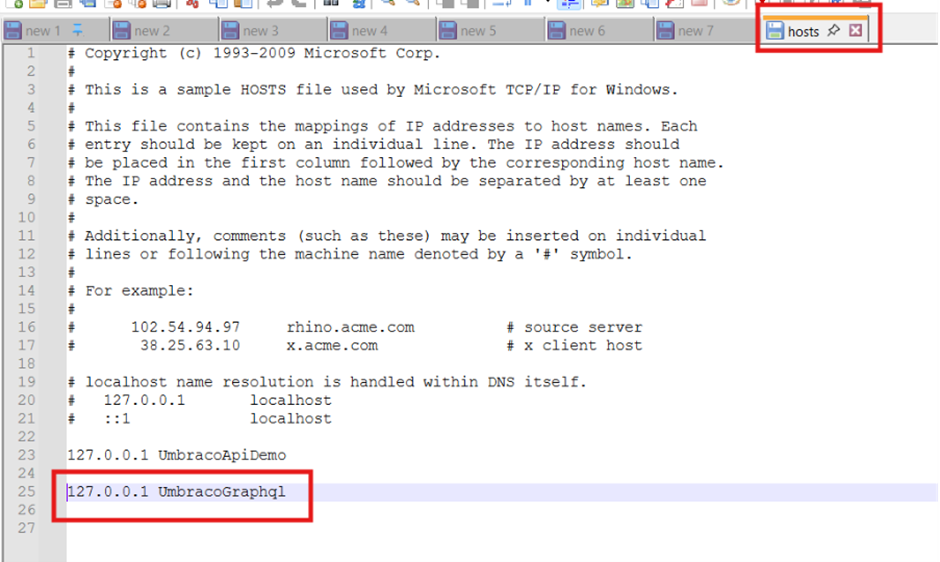
Step 4: Update your hosts file
- Open File Explorer
- Open file : C:\Windows\System32\drivers\etc\hosts
- Open hosts file in Notepad as Administrator add this line : 127.0.0.1 UmbracoGraphql (update your hostname)
Step 5: Configure web.config (if missing)
Open visual studio with your project and Right-click your project and add new file name assign “web.config” and paste it code as per below code:
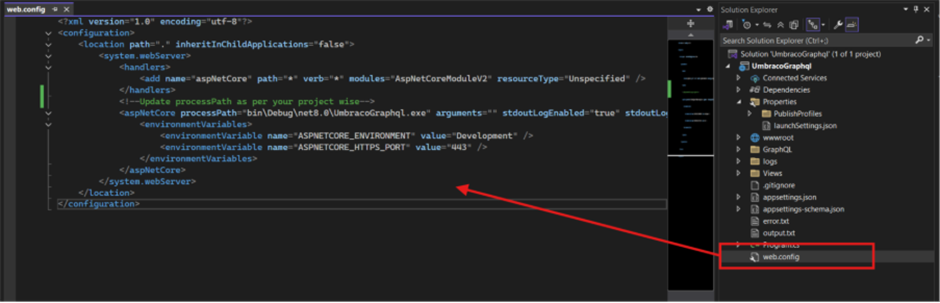
WebConfig Code :
<?xml version="1.0" encoding="utf-8"?>
<configuration>
<location path="." inheritInChildApplications="false">
<system.webServer>
<handlers>
<add name="aspNetCore" path="*" verb="*" modules="AspNetCoreModuleV2" resourceType="Unspecified" />
</handlers>
<!--Update processPath as per your project wise-->
<aspNetCore processPath="bin\Debug\net8.0\UmbracoGraphql.exe" arguments="" stdoutLogEnabled="true" stdoutLogFile=".\logs\stdout" hostingModel="inprocess">
<environmentVariables>
<environmentVariable name="ASPNETCORE_ENVIRONMENT" value="Development" />
<environmentVariable name="ASPNETCORE_HTTPS_PORT" value="443" />
</environmentVariables>
</aspNetCore>
</system.webServer>
</location>
</configuration>
Step 6: Update launchSettings.json file
Need to add IIS profile in launchSettings.json file please add code as per below image wise and also update applicationurl & launchurl as your project hostname wise
Step 7: Browse Your Site
Go to: https://UmbracoGraphql
FAQ
1. How do I install IIS on Windows?
Press the Windows icon and type “Turn Windows features on or off”. Enable the checkbox for Internet Information Services (IIS), click OK, and restart your computer if required.
2. Where should I publish my Umbraco project for IIS hosting?
Create a new folder inside C:\inetpub\wwwroot\ with your project name. This will be your publish destination folder.
3. How do I publish my Umbraco project from Visual Studio?
Open your project in Visual Studio → Right-click on your project → Select Publish → Choose Folder option → Set the path to C:\inetpub\wwwroot\YourProjectName → Click Finish → Then click Publish to deploy the code.
4. How can I configure IIS for my Umbraco website?
Open IIS Manager → Right-click on Sites → Select Add Website → Fill in the Site Name, Physical Path (your published folder), and Host Name → Click OK.
5. How do I update my hosts file for the local Umbraco site?
Open C:\Windows\System32\drivers\etc\hosts as Administrator in Notepad → Add this line: 127.0.0.1 UmbracoGraphql (replace “UmbracoGraphql” with your hostname).
6. What should I do if the web.config file is missing?
Create a new web.config file in your project root. Add the following configuration:
<configuration>
  <location path="." inheritInChildApplications="false">
    <system.webServer>
      <handlers>
        <add name="aspNetCore" path="*" verb="*" modules="AspNetCoreModuleV2" resourceType="Unspecified" />
      </handlers>
      <aspNetCore processPath="bin\Debug\net8.0\UmbracoGraphql.exe" stdoutLogEnabled="true" stdoutLogFile=".\logs\stdout" hostingModel="inprocess">
        <environmentVariables>
          <environmentVariable name="ASPNETCORE_ENVIRONMENT" value="Development" />
          <environmentVariable name="ASPNETCORE_HTTPS_PORT" value="443" />
        </environmentVariables>
      </aspNetCore>
    </system.webServer>
  </location>
</configuration>
7. How can I configure IIS profile in launchSettings.json?
Add an IIS profile in your launchSettings.json file and update applicationUrl and launchUrl based on your project hostname (e.g., https://UmbracoGraphql).
8. How can I access my hosted Umbraco website?
Once everything is configured, open your browser and go to https://UmbracoGraphql (or your custom hostname).
Related Blogs


Read More

Read More

Read More